Your media library.
In good order.
Tidy movie and TV filenames for Plex, organise season folders, edit music tags and artwork, rename batches of files, find duplicates, inspect file details and repair supported permissions. Six tools in one native Mac app, with your files processed locally.
14 days to try every editing feature. Then £4.99 once. No automatic charge.
Plex-style naming.
A tidier media library.
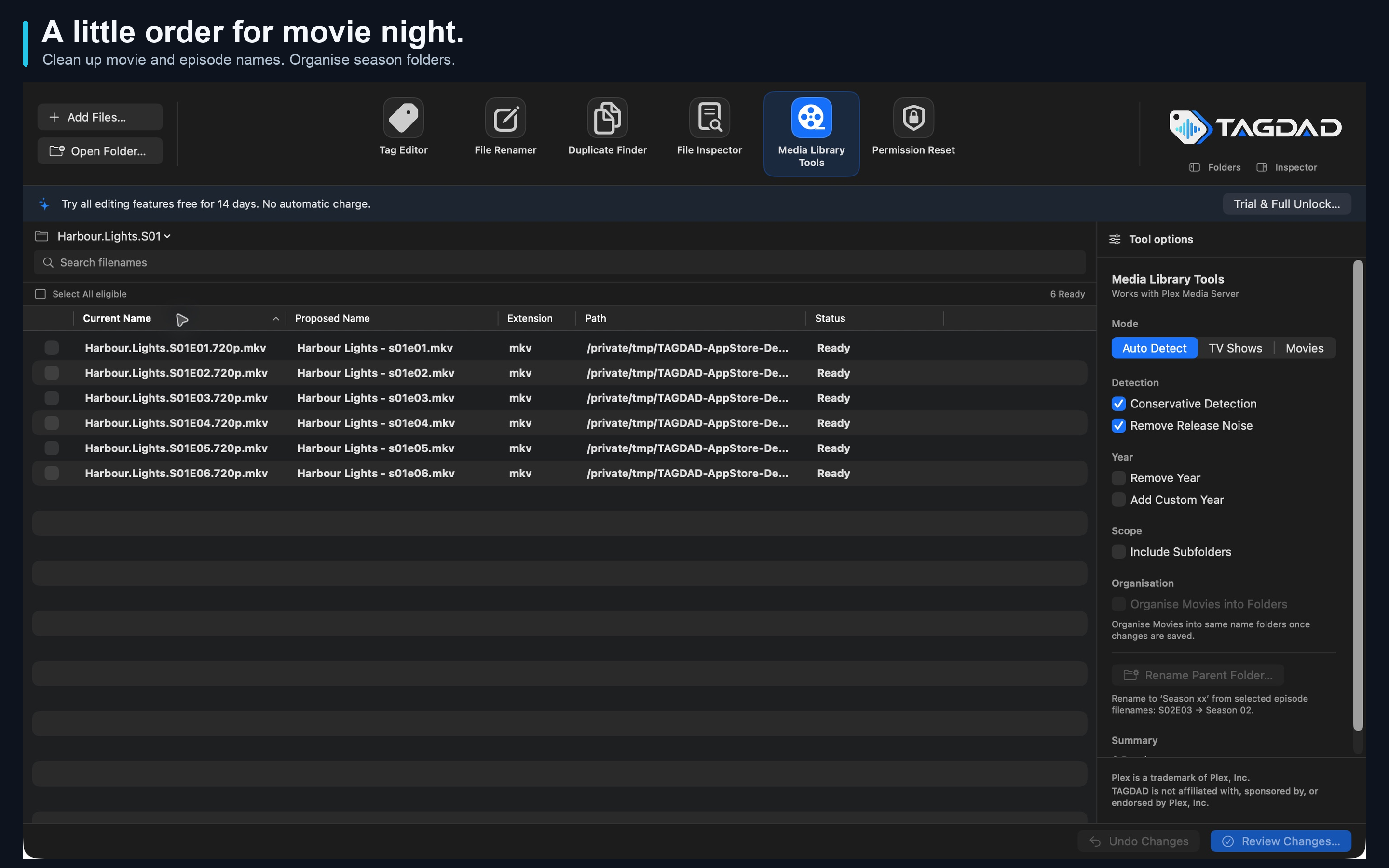
Resolution tags, release labels, dots everywhere. TAGDAD helps turn that clutter into clear movie and episode names, with a before-and-after preview.
Designed for local media libraries, including Plex-style naming. Open the folders you want to work with, choose your files and review the result.
See the media-library workflowIllustrative naming examples. Folder renaming is a separate, confirmed operation.
From filename detection to season-folder organisation.
Let the filename do the work.
Recognise season and episode patterns, remove release noise and preview consistent names. Use Auto Detect or choose TV Shows.
Give each film a home.
Clean up movie names, control the year and organise selected movies into folders named after the film.
One folder. One season.
Rename an episode’s parent folder to Season xx, taking the season from the selected filenames. Review the full folder change first.
TAGDAD works on your files. It does not connect to, manage or replace your Plex server.
Read the Plex workflow →Your music.
Properly labelled.
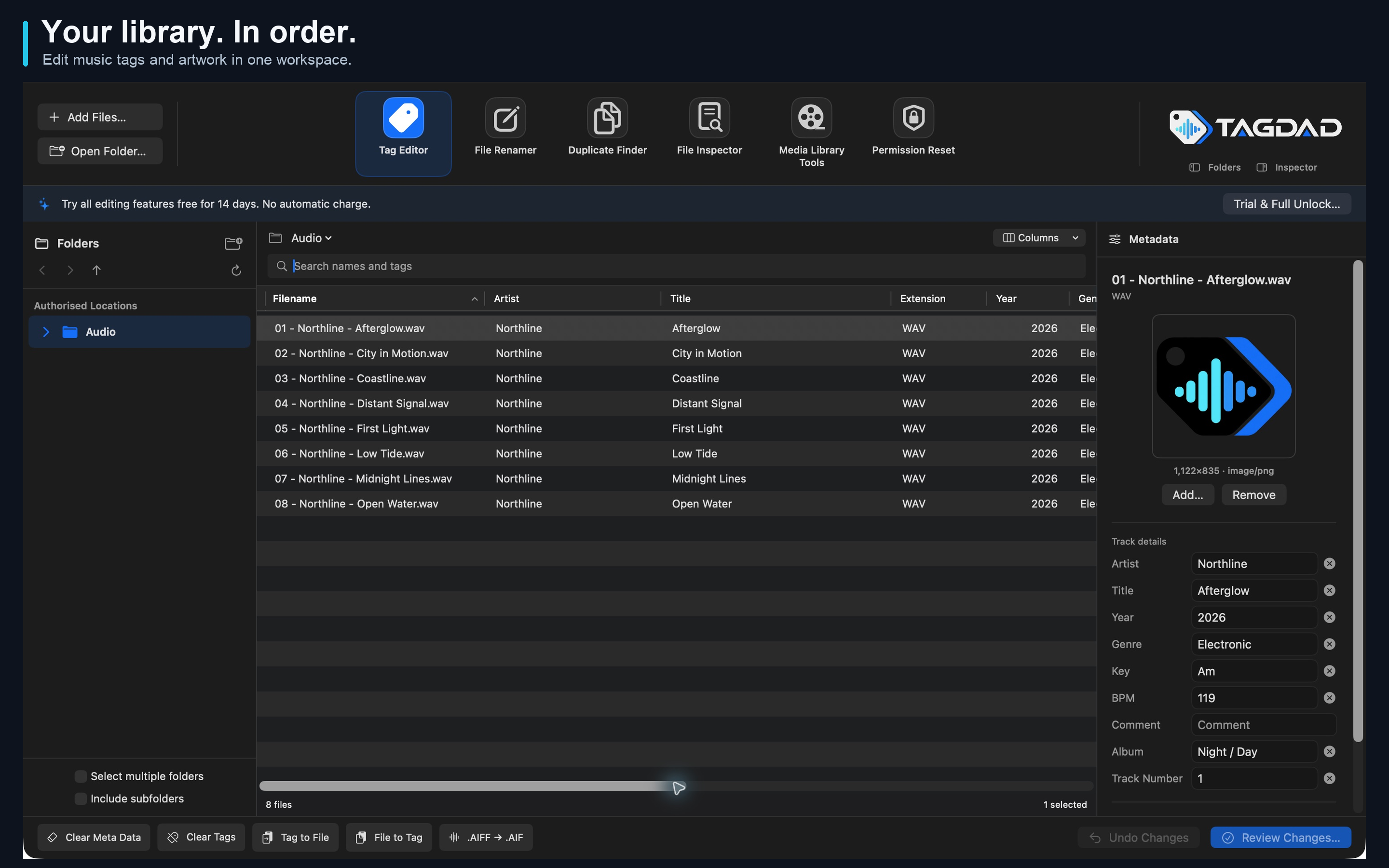
Bring the details together: artist, album, title, track number, genre, BPM, musical key and artwork. Edit a single track or work across a selection, then review your changes.
Read the Tag Editor guideTags that travel with your music.
Edit supported embedded metadata and artwork across your collection. Musical-key text stays exactly as entered.
From tags to names. And back.
Build filenames from your music tags, or extract tags using a filename pattern. Keep the preview in view before applying.
Available fields vary by format. Audio properties are read-only.
A better name.
For every file.
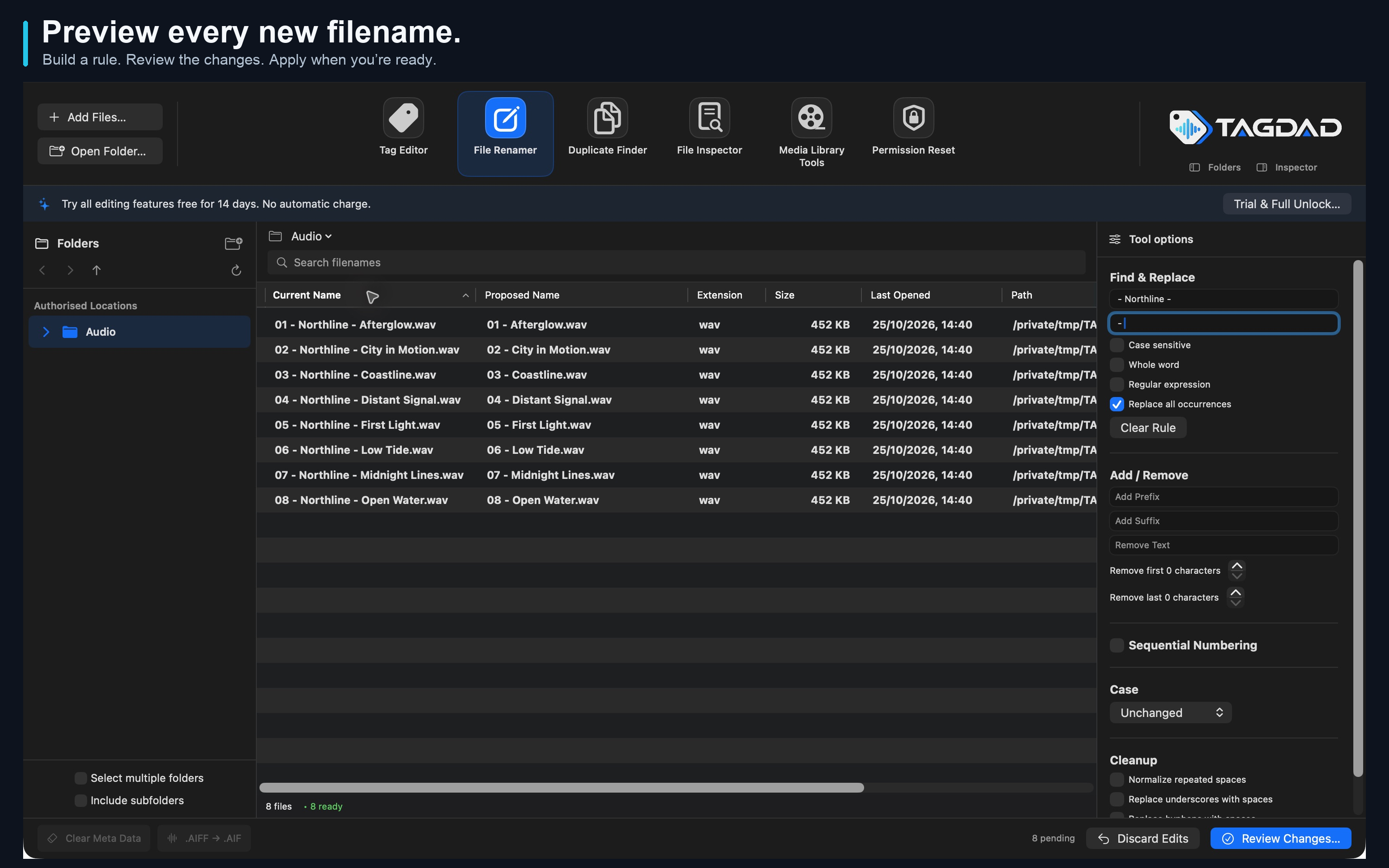
Turn a pile of inconsistent filenames into a clear, repeatable pattern. The File Renamer keeps current names, proposed names and status together so you can check the whole batch.
Read the File Renamer guideBuild your rule.
Find and replace text, use regular expressions, add prefixes or suffixes, change case and apply sequential numbering.
Review the result.
Check names, extensions and paths before committing. Resolve naming conflicts and leave uncertain files out of the selection.
Find the same file.
Again.
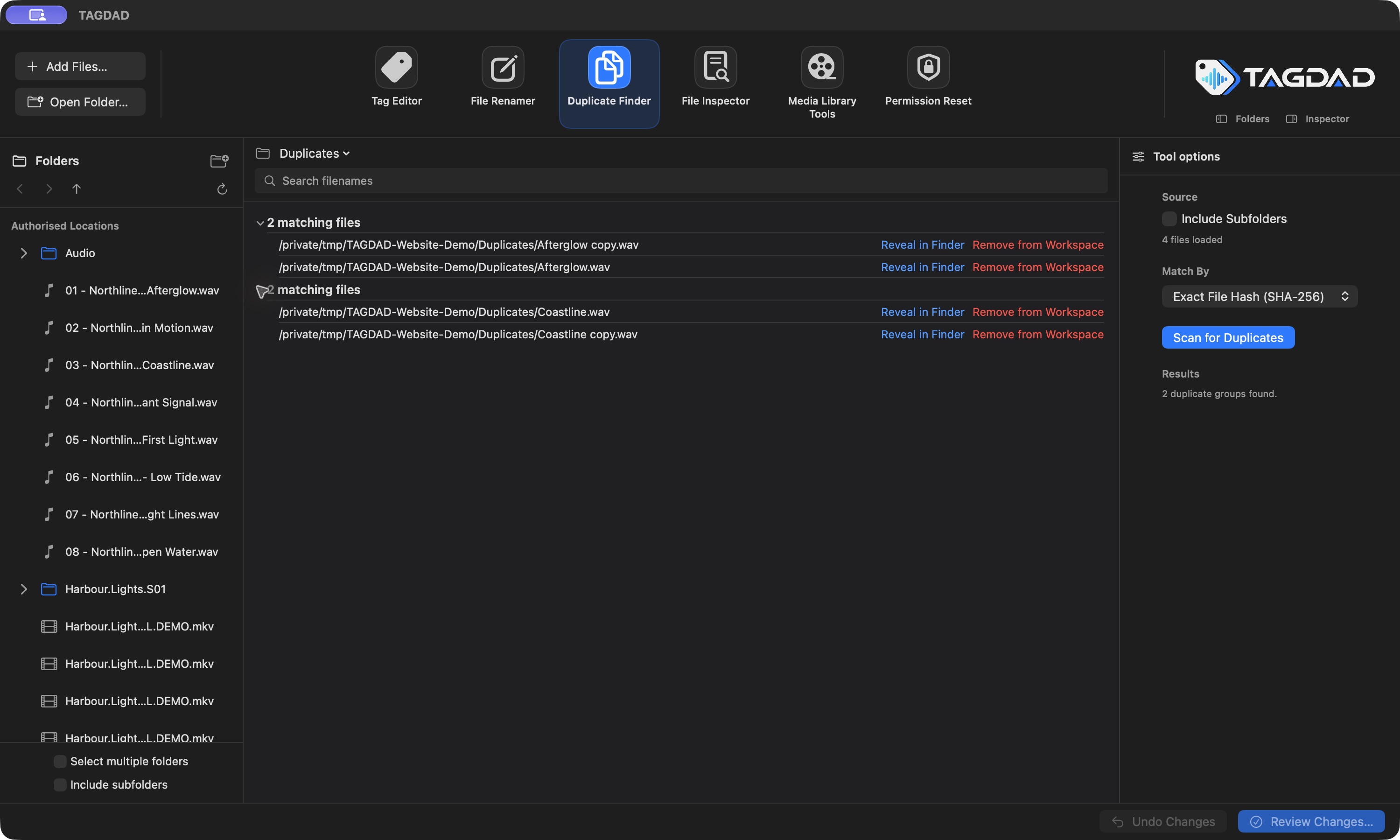
Compare files across the folders you choose and inspect matches in groups. Start with filenames, narrow the comparison with size, or check exact file contents.
Read the Duplicate Finder guideChoose how files match.
Use Filename, File Size + Filename, or Exact File Hash (SHA-256). A content hash compares the whole file; differently tagged audio can have different hashes.
Keep the decision yours.
Inspect the results and reveal files in Finder. TAGDAD does not delete duplicate source files, and removing a row only removes it from the workspace.
More than
a filename.
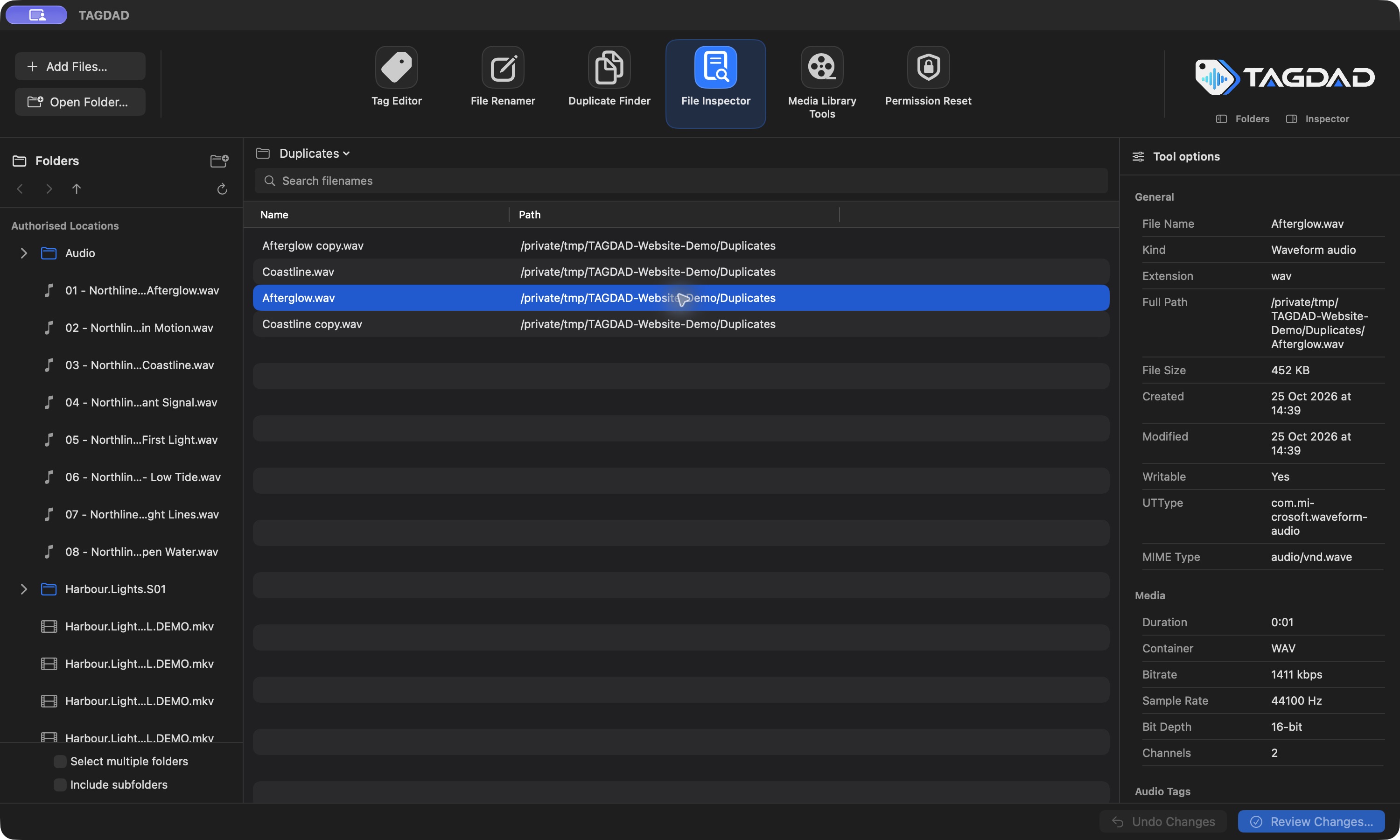
Open File Inspector for a closer look at a file before changing it. Browse its properties and supported audio, image or video metadata in one place.
Read the File Inspector guideLook beneath the name.
Inspect the details available for the selected format, including supported audio properties and embedded metadata.
Understand what is available.
The information shown depends on the file and what macOS exposes. Missing metadata does not necessarily mean a file is damaged.
Know what’s writable.
Review what changes.
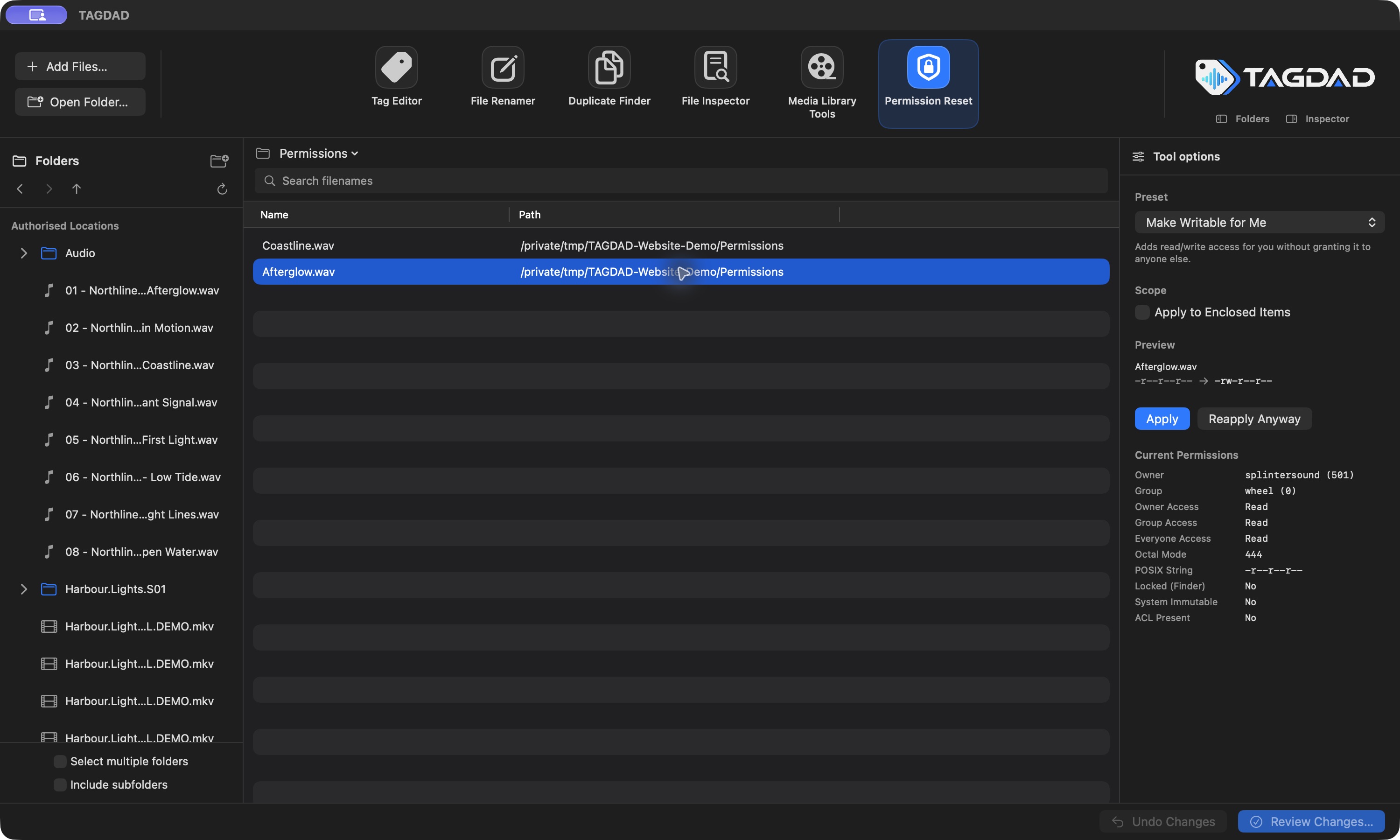
Inspect ownership, permissions and lock state when a file will not behave as expected. Review supported repair presets and their scope before applying a change.
Read the Permission Reset guideInspect before repairing.
See the access details of selected files, then choose a supported permission preset or lock-state operation.
Stay in control.
Repairs work within your own macOS permissions and the folder access you grant. Each operation has a confirmation so you can check what it affects.
Your files stay
on your Mac.
No TAGDAD account. No advertising. No analytics. File contents and metadata are processed locally; Apple handles purchases.
Read the privacy policyTry everything.
Keep what you love.
Activate the free 14-day trial to apply edits, renames and organisation changes. After that, Full Unlock is a one-time purchase.
The trial never renews and never charges you automatically. Browsing, inspection, duplicate finding, previews and Undo remain available for free.
How trial and restoration workOne-time in-app purchase. No subscription.
- 14-day free trial of editing features
- All six workspaces in one Mac app
- Restore with your Apple Account
- Your files remain yours after the trial
Apple displays your local price before purchase. macOS 12 or later; Apple silicon and Intel.
Does TAGDAD connect to Plex?
No. TAGDAD organises local files using names suitable for media libraries, including Plex-style naming. It does not sign in to Plex, change server settings or fetch posters, episode titles or online metadata.
Will it change files immediately?
Filename and tag edits are staged for review. Folder organisation, metadata clearing and permission changes have their own confirmation steps. Read the proposed scope before applying, and keep a backup of irreplaceable files.
What happens after the trial?
You can keep browsing, inspecting, finding matching files and previewing changes. Applying new changes requires the optional one-time Full Unlock. Undo remains available; the trial does not charge you.
Can it tidy a whole TV season?
Select the episode files you want to rename and review the proposed names. To rename their folder, clear or apply pending file edits, then choose Rename Parent Folder… in Media Library Tools. The entire parent folder is renamed, including all items inside it.
Is it available on Windows?
TAGDAD is a native Mac app for macOS 12 or later, on Apple silicon and Intel Macs. There is no Windows version.